WordPress Tips
Elementor Speed Optimization: 12 Settings That Work
Why Elementor websites load slowly and the twelve settings, plugins and habits that fix it, tested on client sites in Malaysia. No rebuild needed.
 By Zahid Aramai
I have been building with Elementor since it was new, and I have also been called in to rescue dozens of Elementor sites that take eight seconds to load. The builder gets the blame. It usually does not deserve all of it.
This is the list I work through when a client says “my website is slow”, in the order that gives the biggest gain for the least risk. Nothing here needs a redesign or a theme change.
First, measure the right thing
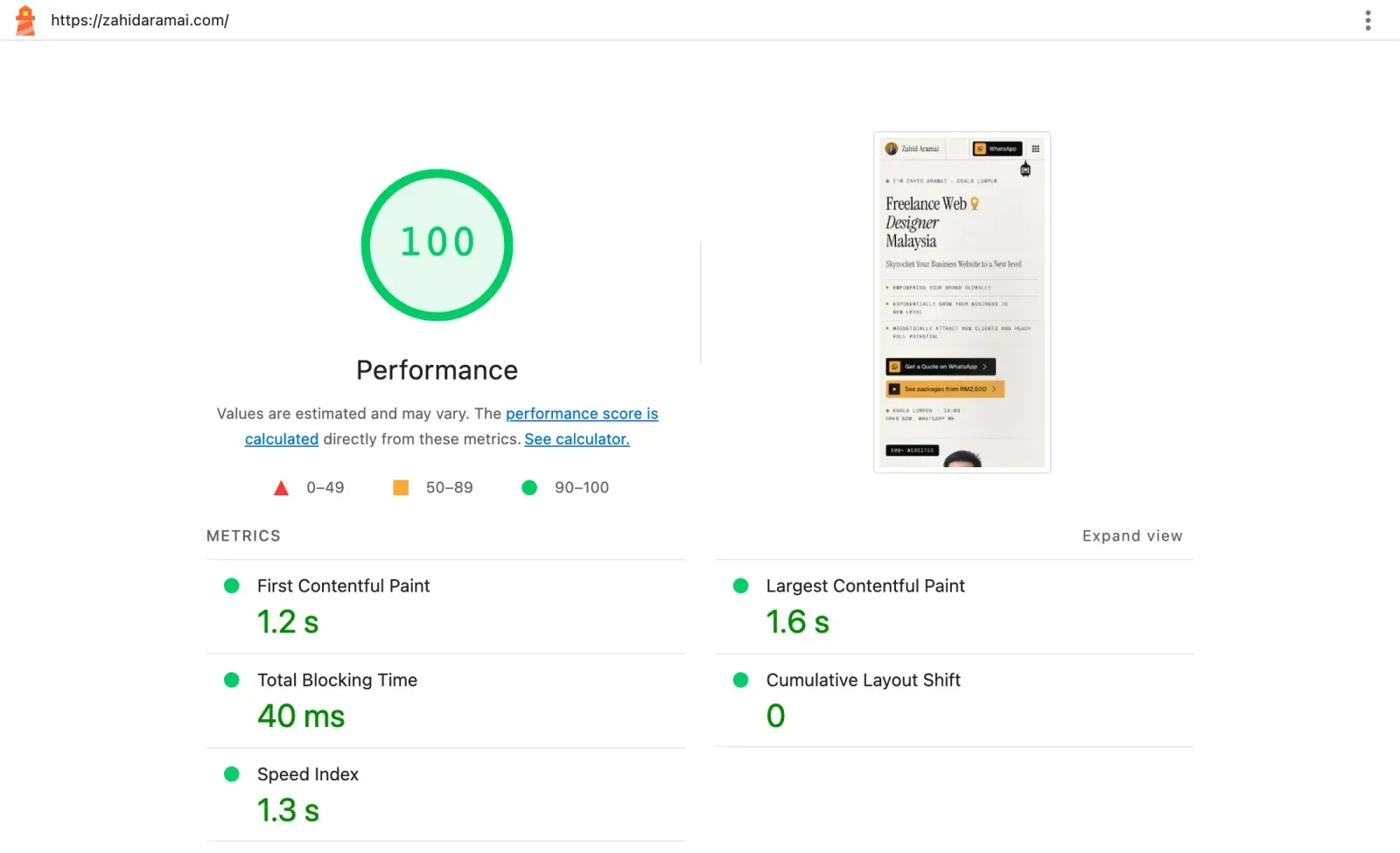
Open PageSpeed Insights, test your home page and one inner page on mobile, and write down three numbers: Largest Contentful Paint (LCP), Cumulative Layout Shift (CLS) and Total Blocking Time (TBT). Those are what Google scores and what visitors feel. The single performance number is a summary; the three metrics tell you what to fix. Repeat the test after each change below so you know which ones mattered on your site.
Lab data versus field data, and which one to trust
PageSpeed Insights shows two different kinds of result, and mixing them up causes a lot of wasted effort.
Field data is what real visitors experienced on real phones over roughly the last four weeks, collected from Chrome users. It only appears if your site has enough traffic. This is the data Google uses to judge page experience, so it is the one that matters for rankings and for your visitors.
Lab data is a single simulated test run by Lighthouse on a throttled virtual phone. It is repeatable, so it is the right tool for checking whether a change you just made helped. But it is one test, on one page, at one moment, and the score moves a few points between runs.
| Field data | Lab data | |
|---|---|---|
| Where it comes from | Real visitors, last four weeks | One simulated phone test |
| When it shows | With enough traffic | Always |
| Measures INP | Yes | No; watch TBT instead |
| Best used for | Rankings, real experience | Checking a change |
| Run to run | Slow to move | A few points each run |
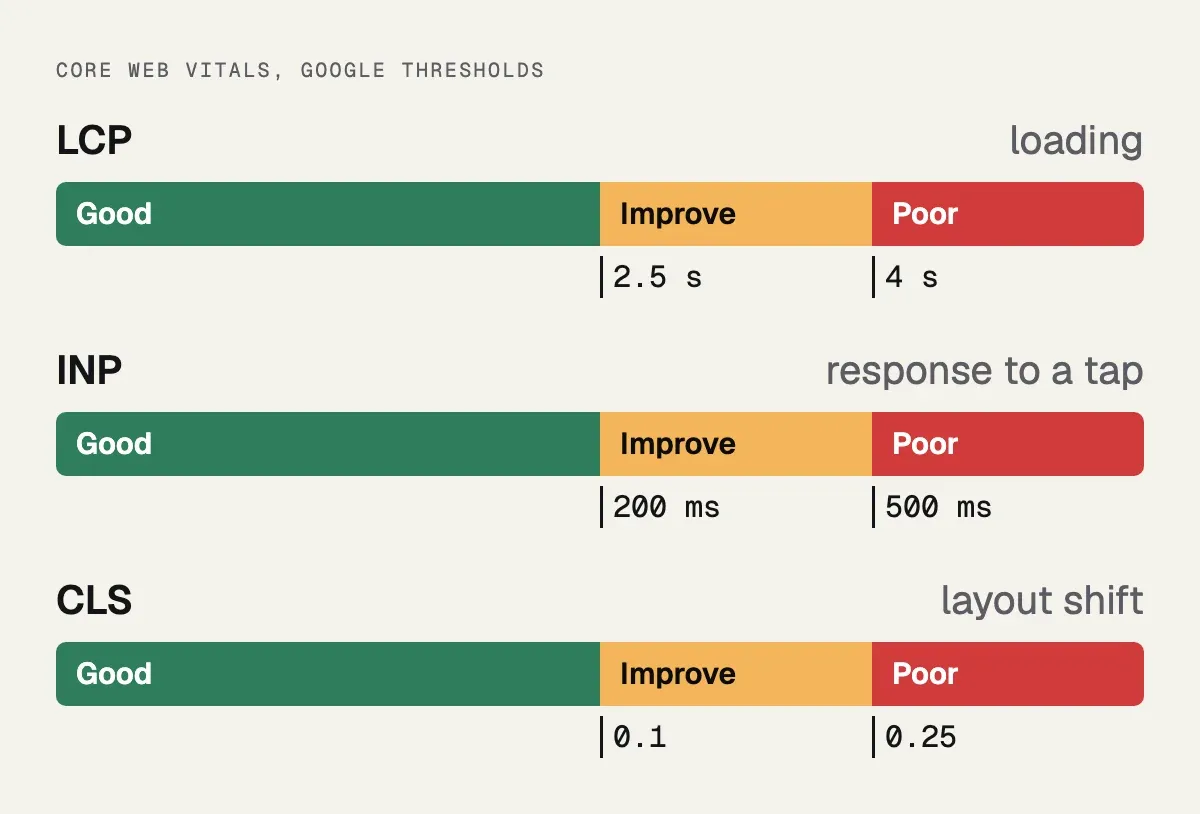
The three Core Web Vitals are Largest Contentful Paint (LCP, good is 2.5 seconds or less), Interaction to Next Paint (INP, good is 200 milliseconds or less) and Cumulative Layout Shift (CLS, good is 0.1 or less). INP measures how quickly the page reacts when someone taps a menu or a button. The lab test cannot measure it, which is why Total Blocking Time is used as a stand-in while you work.
Two habits make your numbers honest. First, test while logged out, or in a private window, because most caching plugins skip the cache for logged-in users and the result will look worse than what visitors get. Second, run the test two or three times and compare the typical result, not the best one. If you can, also open the site on a mid-range Android phone on ordinary mobile data. A flagship phone on office Wi-Fi hides problems that your customers on a bus will see.
1. Compress and resize images before anything else
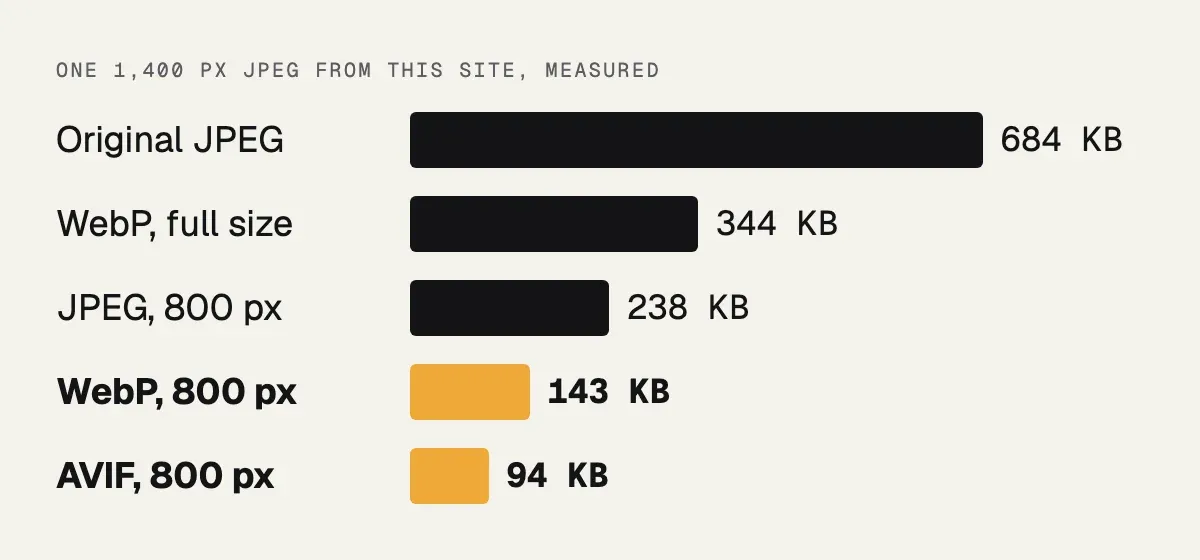
Nine slow Elementor sites out of ten are slow because of images. A photo straight from a phone is four megabytes and 4,000 pixels wide; the slot it sits in is 800 pixels. Install an image optimisation plugin that converts to WebP and resizes on upload, then run it over the existing library. This one change often halves the load time.
2. Set the hero image to load eagerly and everything below it lazily
Elementor and WordPress lazy-load images by default, which is right for everything except the first image the visitor sees. Lazy-loading the hero delays LCP. Turn lazy loading off for that one image and leave it on for the rest.

3. Use the Hello theme or another light theme
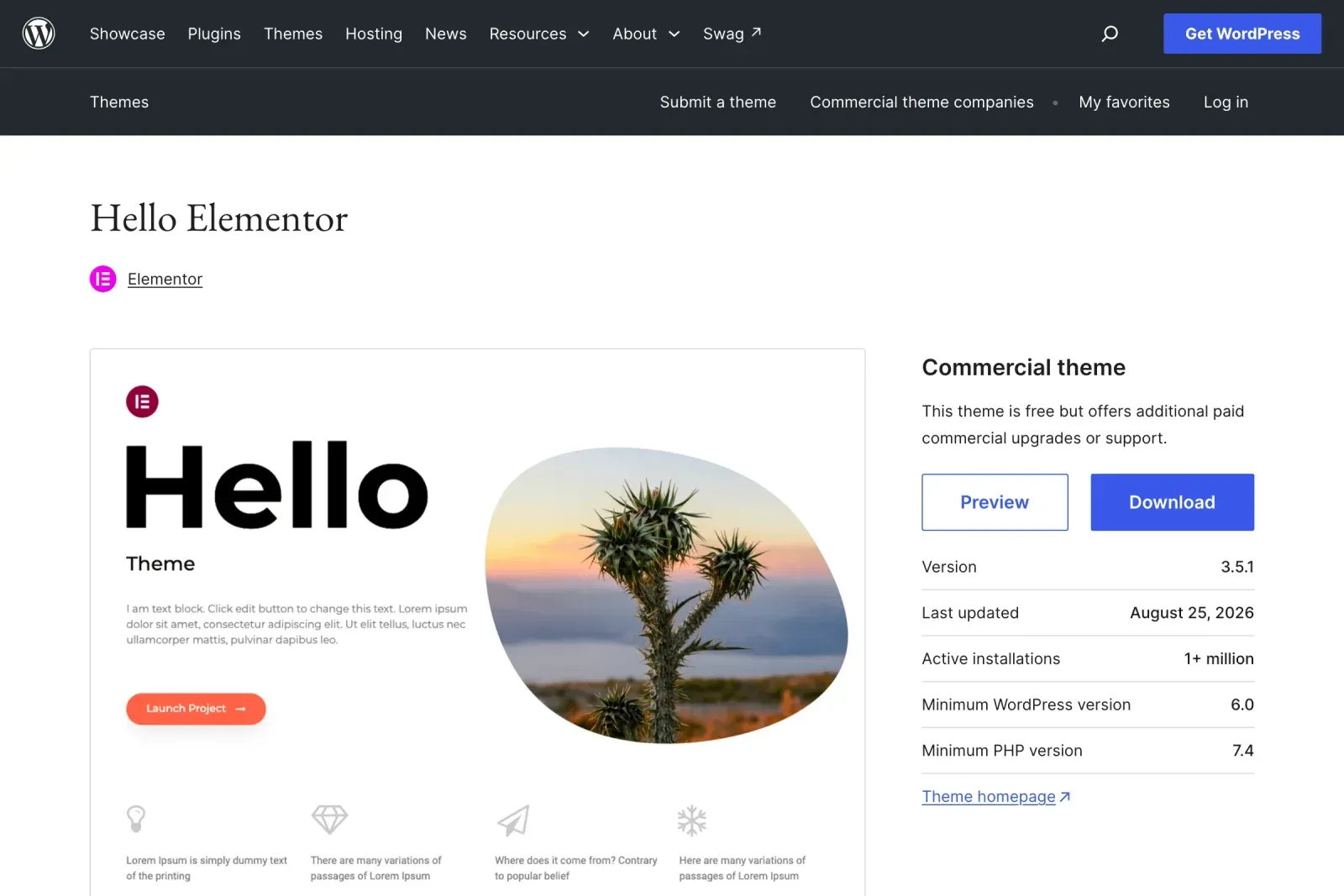
A multipurpose theme loads its own sliders, icon fonts and scripts on every page whether you use them or not. Elementor’s own Hello theme loads almost nothing. If you are on a heavy theme with Elementor on top, you are paying twice.
| Loads | Heavy theme | Hello 3.5.1 |
|---|---|---|
| CSS | Styles for every demo | 3 files, about 19 KB |
| Sliders | Often, used or not | None |
| Icon font | Common | None |
| Layout | Theme and Elementor | Elementor only |
4. Turn on Elementor’s performance features
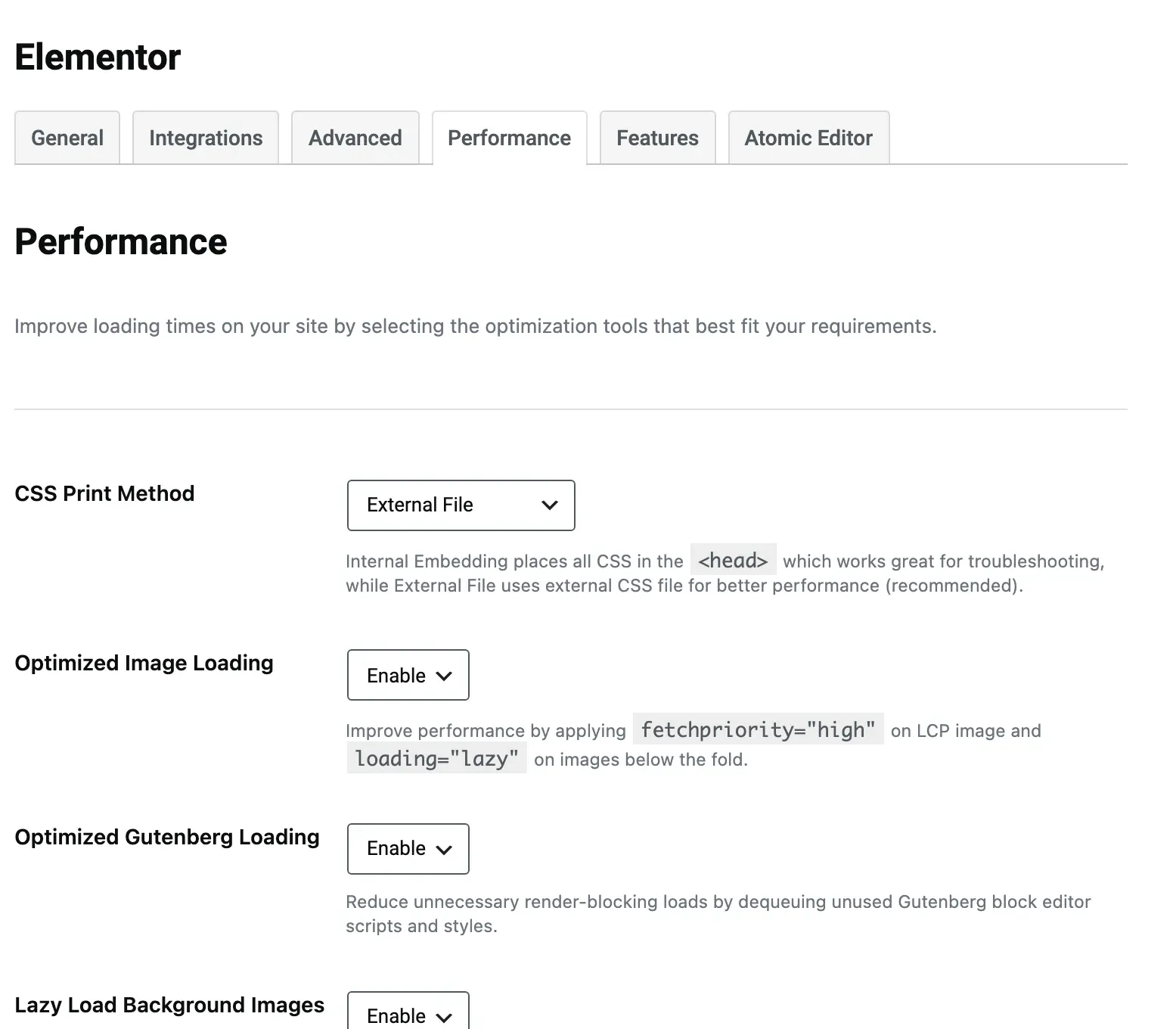
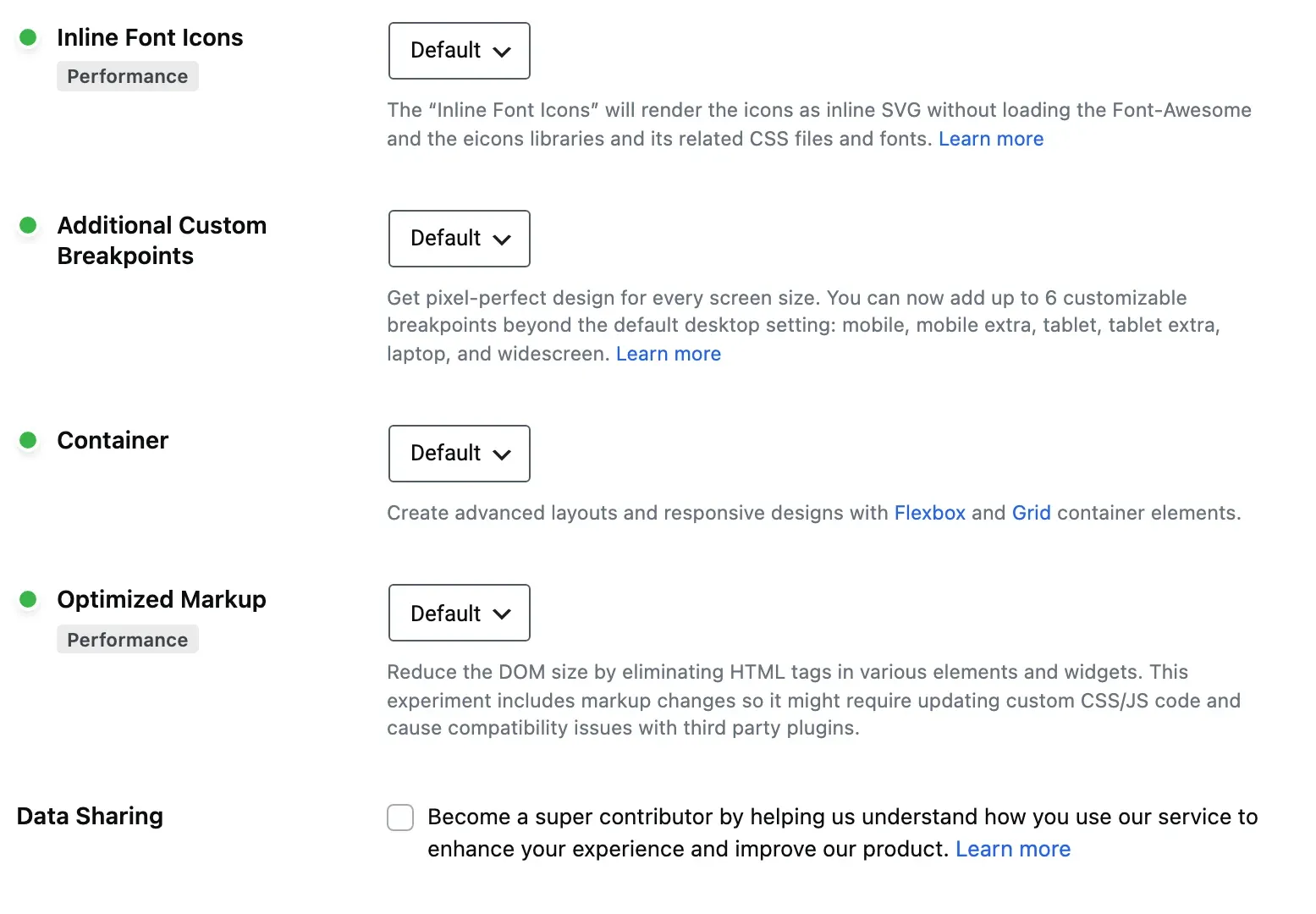
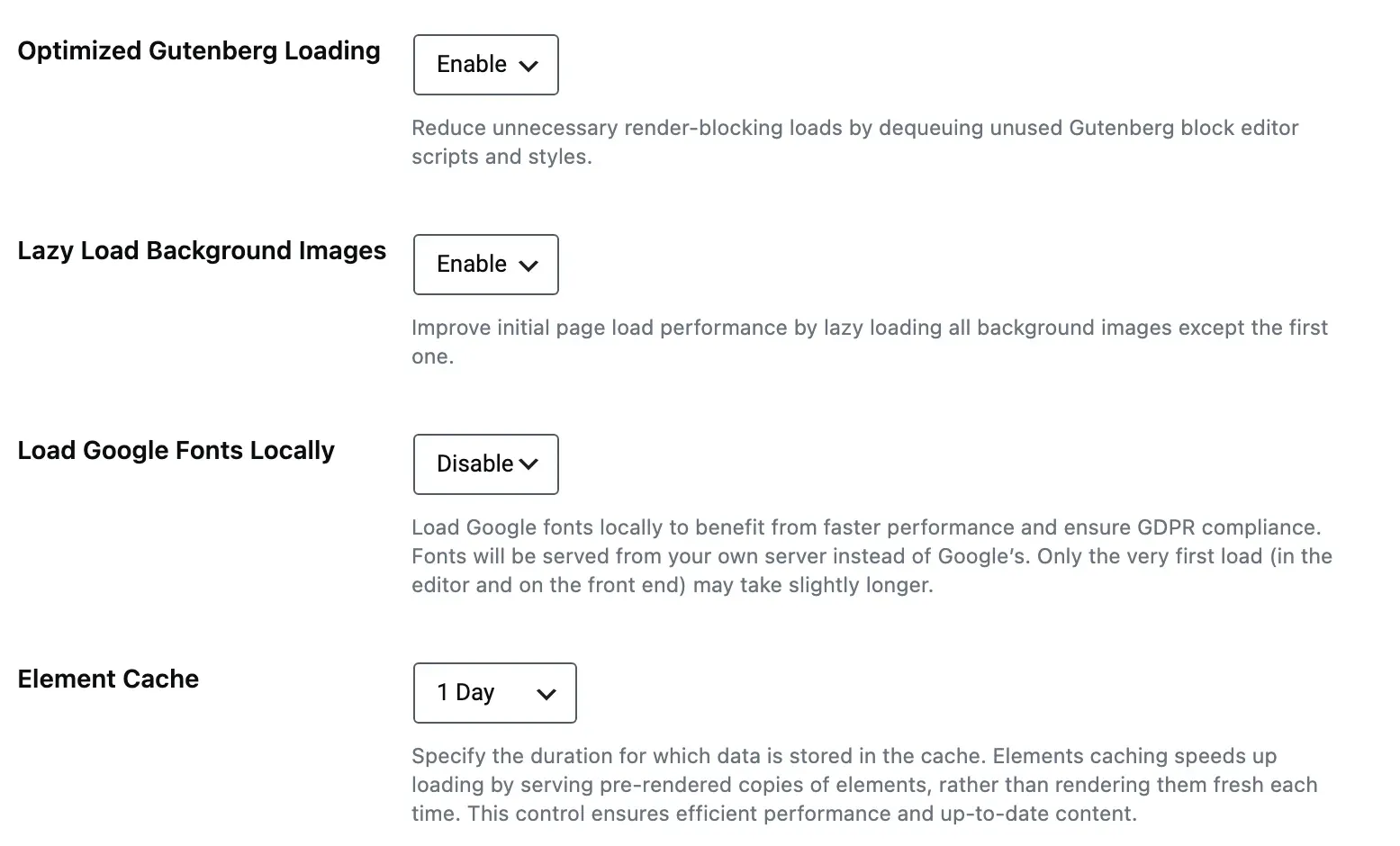
In Elementor’s settings under Features and Performance: enable Improved Asset Loading, Improved CSS Loading, Inline Font Icons and the optimised DOM output. Enable the Element Caching feature if your version has it. These are off on older installs and each one trims what the browser downloads.
5. Stop loading Font Awesome and Eicons everywhere
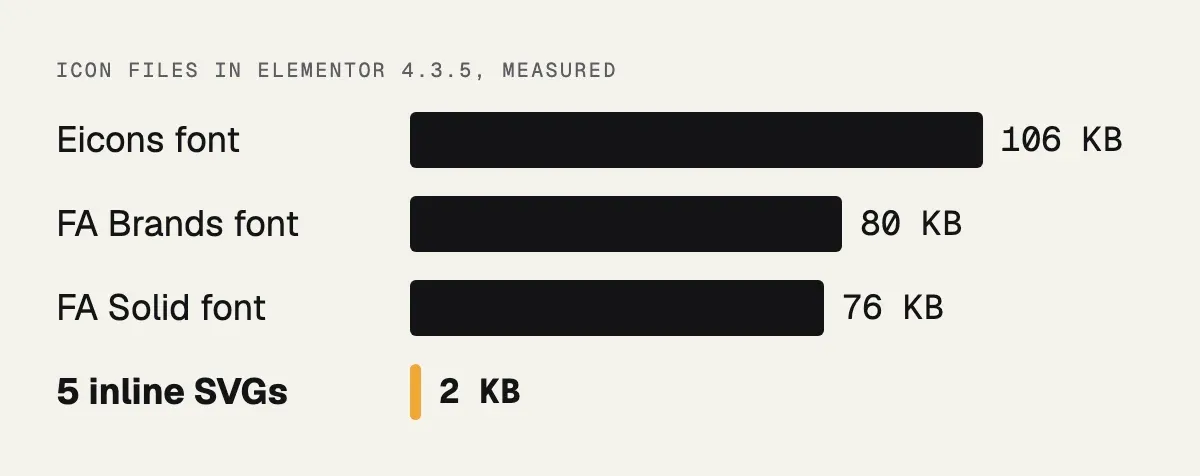
Icon fonts are large files loaded on every page for a handful of icons. With Inline Font Icons enabled, Elementor only sends the SVG for icons you actually used. Check the page source for fontawesome and eicons files; if they are still there, a plugin or the theme is loading them separately and can usually be told not to.
6. Host fonts locally and limit the weights
Google Fonts loaded from Google’s servers add a connection and a render delay. Download the two or three weights you use, upload them in Elementor’s Custom Fonts, and set the font display to swap. Four weights of one family are plenty for a business site.
7. Cut the plugin list
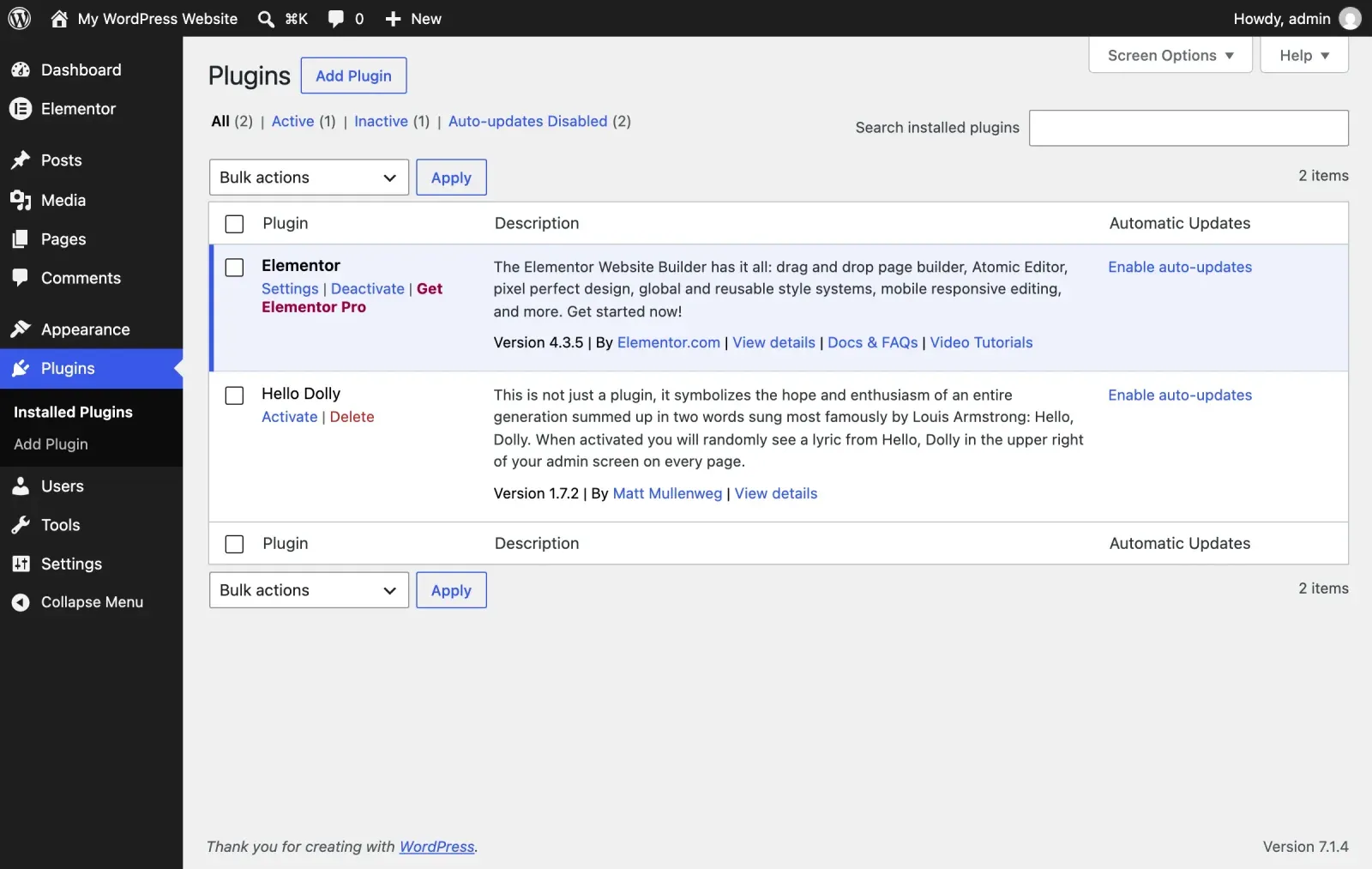
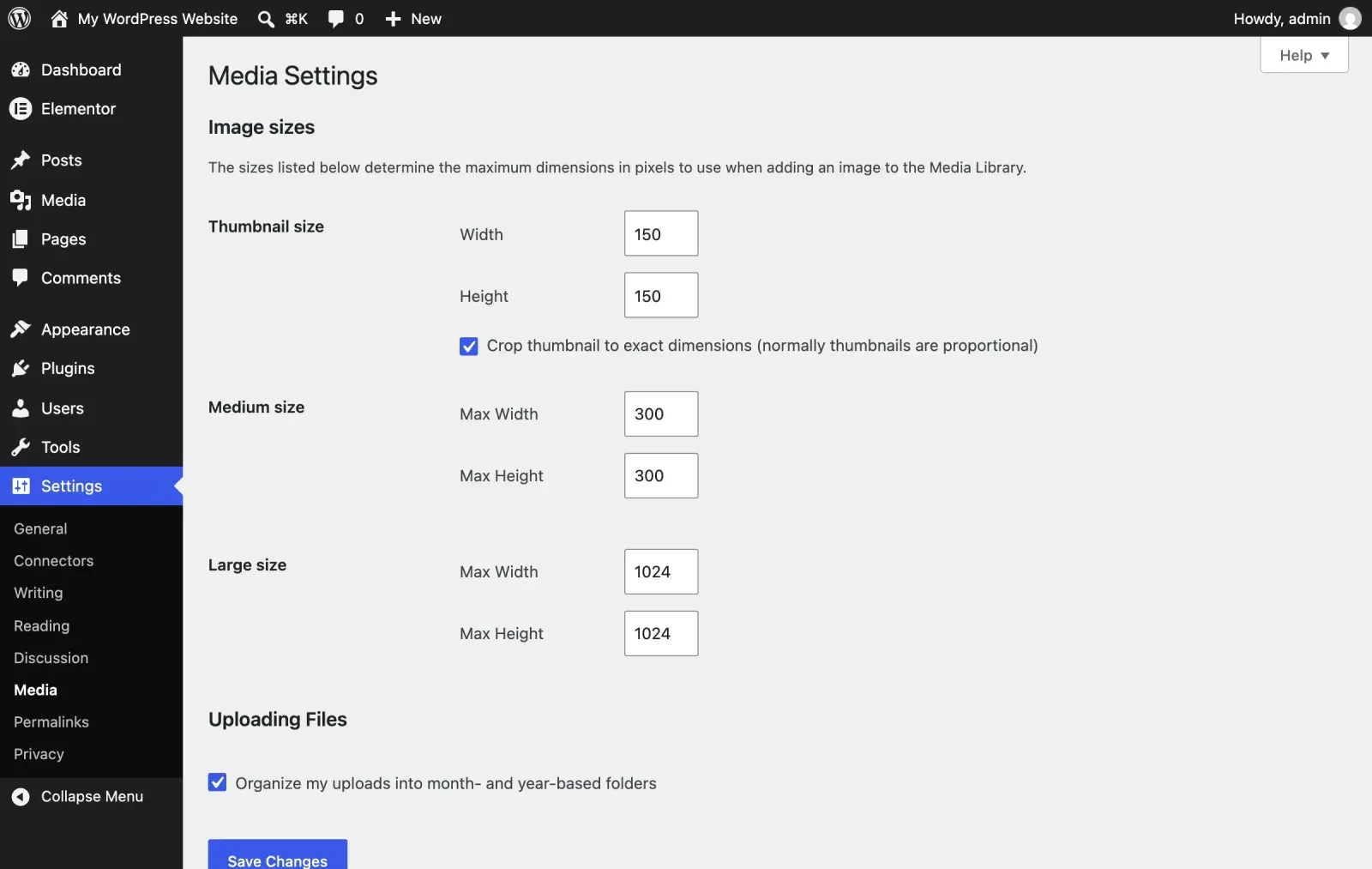
List every active plugin and ask what would break without it. Slider plugins, form plugins with their own front-end scripts, social share bars, popup builders and page view counters are the usual offenders. Each one loads CSS and JavaScript on every page. A business site needs eight to fifteen plugins, not forty.
8. Install one caching plugin and configure it
Page caching turns a page that takes a second to generate into a file served instantly. On a LiteSpeed server use LiteSpeed Cache; otherwise WP Rocket or a comparable plugin. Enable page caching, browser caching and GZIP or Brotli compression. Enable CSS and JavaScript minification, then test the site, because minification occasionally breaks a script. Never run two caching plugins at once.
| Layer | What it does | Set in |
|---|---|---|
| Page cache | Skips PHP and the database | Plugin or host |
| Browser cache | Keeps files on the phone | Caching plugin |
| GZIP or Brotli compression | Shrinks text files in transit | Plugin or server |
| CSS and JS minification | Trims spaces and comments | Plugin, then test |
9. Delay non-critical JavaScript
Chat widgets, analytics, Facebook pixels and video embeds can start loading after the visitor interacts or after a short delay. Caching plugins offer a delay JavaScript option. It does more for Total Blocking Time than almost anything else, with one caution: test that your forms and menus still work.
10. Replace heavy sections with light ones
A background video in the hero, a slider with five slides, an Instagram feed, a Google Map embed above the fold: each is a performance cost paid by every visitor for a feature most never use. A static image, one strong headline and a WhatsApp button load instantly and convert better.
| Heavy section | What every visitor downloads | Lighter replacement |
|---|---|---|
| Video in the hero | A video file, the heaviest item | One compressed still image |
| Five-slide slider | A slider script and five images | One image, one headline |
| Instagram feed | A third-party script and images | A link to the profile |
| Google Map above the fold | Maps scripts and tiles | Address text; map lower down |
11. Use a CDN and check the hosting
A content delivery network serves images and files from a location near the visitor. For a Malaysian audience the gain is modest but real. More important is the hosting itself: if the server takes over a second to start sending the page, no front-end work saves you. Check Time to First Byte in the PageSpeed report; if it is high, talk to your host or move.
12. Clean the database and the revisions
Every edit in Elementor saves a revision, and after two years a page can have three hundred of them. Limit revisions in the configuration, clean the existing ones with a database plugin, and clear expired transients. The site gets lighter to back up and faster in the admin, which is where you spend your time.
| Task | How | When |
|---|---|---|
| Back up first | Files and database | Every time |
| Limit revisions | About 5 per page, in wp-config.php | Once |
| Delete old revisions | WP-Optimize or similar | Every few months |
| Clear expired transients | The same plugin | Monthly |
The mistakes I see most often
Two caching plugins at once. One from the host, one installed by a previous developer. They fight, and pages come back stale or broken. Keep one, and ask your host which caching they already provide.
Optimising only the home page. The home page is usually the best-built page on the site. Test a blog post, a service page and, on a shop, the product and checkout pages. They often carry extra plugins and larger images.
Uploading full-size images and trusting the page to shrink them. The browser still downloads the whole file. Resize before upload, or use a plugin that does it for you.
Turning on every minify and combine option at once. When the site breaks, you cannot tell which switch did it. Change one setting, test the pages that matter (menu, forms, checkout), then move to the next.
Treating the score as the goal. A perfect score on a page nobody can read is a bad result. The goal is a page that loads fast on a phone and still works: the menu opens, the form sends, the WhatsApp button is visible.
Ignoring the host. If the server is slow to respond, front-end work only hides the problem for a while. Many local business sites sit on the cheapest shared plan with dozens of other sites, and that ceiling shows up in Time to First Byte.
| Mistake | What you notice | Fix |
|---|---|---|
| Two caching plugins | Stale or broken pages after edits | Keep one; ask the host what it already caches |
| Testing only the home page | Good score, slow blog and shop pages | Test a post, a service page and checkout |
| Full-size uploads | Large image warnings in PageSpeed | Resize before upload or on upload |
| Every minify switch at once | Something breaks, cause unknown | One setting, one test, then the next |
| Chasing the score | High score, broken menu or form | Check the menu, form and WhatsApp button |
| Ignoring the host | High Time to First Byte | Talk to the host or move |
A short checklist to follow in order
- Record LCP, CLS and TBT on the home page and one inner page, logged out, on mobile.
- Resize and convert the biggest images to WebP, starting with the ones above the fold.
- Make sure the hero image is not lazy-loaded.
- Switch on Elementor’s performance features and re-test.
- Remove plugins you cannot justify, then re-test.
- Configure one caching plugin, and test menus and forms afterwards.
- Delay non-essential scripts such as chat widgets and pixels.
- Check Time to First Byte. If it is still slow, talk to your host.
- Record the numbers again and keep them somewhere you will find in six months.
| # | Do this | Then check |
|---|---|---|
| 1 | Record LCP, CLS and TBT, logged out, on mobile | Home page and one inner page |
| 2 | Resize and convert the biggest images to WebP | Images above the fold first |
| 3 | Load the hero image eagerly | LCP |
| 4 | Turn on Elementor’s performance features | Re-test |
| 5 | Remove plugins you cannot justify | Re-test |
| 6 | Configure one caching plugin | Menus and forms |
| 7 | Delay chat widgets and pixels | Forms, menus, TBT |
| 8 | Check Time to First Byte | Talk to the host if slow |
| 9 | Record the numbers again | Keep them for six months |
Speed is also part of how Google judges a page, so it supports the rest of your SEO work rather than replacing it. If the site is old enough that fixes keep fighting the design, a rebuild may cost less over time than endless patching; my WordPress website design page explains how I approach that.
What a tuned Elementor site looks like
A typical business site I tune goes from a mobile Lighthouse score in the 30s with an LCP of six to eight seconds to a score in the 80s or 90s with an LCP under 2.5 seconds, without any change to the design. The work takes a few hours the first time and about ten minutes a month to maintain, because new images and new plugins slowly undo it.
That maintenance is part of the Website Care Plan: a monthly speed check with fixes for anything that regressed, alongside the updates and backups. If you would rather fix it once, speed optimisation is a one-off job I quote after a look at the site; details are on the pricing page.
Next step
Send your website address on WhatsApp and I will reply with the three numbers above for your site and the two or three changes that would move them most.